
Personalized Prompts are custom AI instructions you create to guide ModelWiz's translation behavior for specific, unique requirements that aren't covered by the standard predefined criteria.
Think of personalized prompts as a way to communicate directly with the AI translator, explaining exactly how you want it to handle specific translation challenges in your project.
- 🎯 Targeted Solutions: Address specific translation issues unique to your project
- 📝 Custom Instructions: Define rules that go beyond standard formatting options
- 🔄 Flexible: Create prompts for terminology, context, brand voice, and more
- 📎 Reference Support: Attach files to provide visual examples or context
- 🤝 Collaborative: Share detailed requirements with the Alocai team for implementation
Personalized Prompts are available to:
- ✅ Project Managers
- ✅ Project Coordinators
- ✅ LSP Admins
Not available to:
- ❌ Linguists (they will not see this section in the interface)
> Note: While linguists can configure predefined criteria, only admin roles can create personalized prompt requests.
Use personalized prompts when you need to:
- Handle unique terminology or brand-specific language
- Apply custom number formatting rules (e.g., decimal/thousand separators specific to your client)
- Address context-dependent translations that require special handling
- Implement client-specific style guidelines not covered by standard options
- Manage special character transformations unique to your project
- Apply domain-specific conventions (legal, medical, gaming, etc.)
- Handle cultural adaptations beyond standard localization
Avoid personalized prompts if:
- The requirement is already covered by predefined criteria (use those instead)
- The issue is a consistent terminology problem (use glossaries instead)
- You need many similar rules (consolidate into one comprehensive prompt)
- The requirement is too vague or general (be specific or use predefined options)
> Rule of Thumb: First check if your need can be met with predefined criteria. Only create personalized prompts for truly unique requirements.
- Navigate to your project
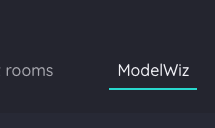
- Click the ModelWiz tab
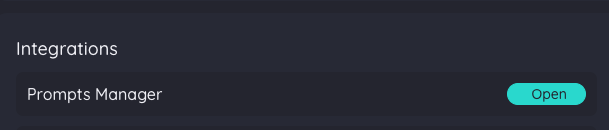
- Click Open on the Prompts Manager card
- Click on the ModelWiz account you want to configure

- Click on the language tab for which you want to create the prompt
- Scroll down past the predefined criteria checkboxes
- Find the section titled "Personalized Prompts"
- You'll see a button labeled Add Personalized Request
> Note: If you don't see this section, you may not have the required permissions. Contact your administrator.
Click the Add Personalized Request button. A new prompt input area will appear with:
- A text area for your prompt description
- A file upload dropbox
- A character counter
- A delete button (X)
In the text area, describe your translation requirement in detail:
- Maximum length: 500 characters
- Auto-save: Your text is saved automatically as you type (after 500ms)
- Character counter: Monitor your usage at the bottom of the text area
If helpful, attach a reference file:
- Drag and drop a file into the dropbox, OR
- Click the dropbox to browse and select a file
- Wait for the upload to complete
Once you've created all necessary prompts:
- Click Sync Changes button (top-right corner)
- Fill in the request modal
- Click Send Request
Every personalized prompt should include:
1. Clear Description: Exactly what needs to happen
2. Specific Examples: Show source → target transformations
3. Target Language: Specify which language this applies to
4. Context: Explain *why* this is needed
5. Scope: Define when the rule applies
```
"We need [WHAT] for [LANGUAGE] because [WHY].
For example, [SOURCE EXAMPLE] should become [TARGET EXAMPLE]."
```
- Be specific: "Change commas to periods in numbers" instead of "Fix numbers"
- Use examples: Show actual source and desired target text
- State the language: "For Spanish (Spain)" or "In French translations"
- Explain context: "In marketing materials" or "For character names"
- Be concise: Get to the point within 500 characters
- Be vague: "Make translations better" or "Fix formatting"
- Combine unrelated rules: Keep each prompt focused on one issue
- Duplicate predefined criteria: Check existing options first
- Use technical jargon: Write in plain, clear language
- Leave out examples: Always show what you mean
With only 500 characters, prioritize:
1. The rule (what should happen)
2. One clear example
3. The target language
You can always attach a reference file for additional examples or context.
Reference files provide visual examples, style guides, or supplementary context for your personalized prompt.
- Images: .jpg, .png
- Spreadsheets: .xls, .xlsx
- Translation Files: .po
- Documents: .pdf, .txt, .doc, .docx
- Maximum size: 10MB
- Maximum count: 1 file per personalized prompt
- File name length: Under 100 characters
1. Drag and Drop:
- Drag your file over the dropbox area
- The area will highlight when ready to accept the file
- Drop the file to begin upload
2. Browse and Select:
- Click anywhere in the dropbox area
- Navigate to your file
- Click Open
- Name your files clearly: Use descriptive names like "number-formatting-examples.xlsx"
- Organize content: If using a document, structure it clearly with headers
- Use appropriate formats:
- Screenshots → .png or .jpg
- Examples table → .xlsx
- Style guide → .pdf
- Sample text → .txt or .docx
Once uploaded, you'll see:
- File name
- File size
- Download icon (to retrieve the file)
- Delete icon (to remove the file)
- Changes to the text area auto-save (no manual save needed)
- Edit anytime before submitting changes
- Character counter updates in real-time
1. Click the X button in the top-right corner of the prompt
2. Confirm deletion in the modal that appears
3. The prompt is permanently removed
> Warning: Deletion is immediate and cannot be undone. Make sure you want to delete before confirming.
1. Click the trash icon next to the uploaded file
2. The file is removed from the prompt
3. You can upload a new file if needed
1. Click the download icon next to the file name
2. The file downloads to your default downloads folder
3. Use this to verify what file you uploaded
- Create multiple prompts by clicking Add Personalized Request again
- Each prompt is independent and can have its own file
- All prompts under the same account/language are submitted together
- Organize from most to least important (top to bottom)
1. Complete Your Prompts:
- Write clear descriptions
- Attach reference files if needed
- Review for clarity and completeness
2. Click Sync Changes:
- Button located in the top-right corner
- This opens the ModelWiz MT Settings Request modal
3. Fill in Request Details:
- Requester name: Select your name (required)
- Message: Add optional context or urgency notes
- Example message: "Urgent for Q2 launch - client requirement"
4. Send Request:
- Click Send Request button
- You'll receive an email confirmation
- 📋 The Alocai team receives your personalized prompt request
- ⏱️ Your request enters the review queue
1. Assessment: The team reviews your prompt for feasibility
2. Prioritization: Requests are handled in submission order
3. Implementation: If feasible, the team creates a custom AI prompt
4. Testing: The prompt is tested for effectiveness
5. Communication: You're notified of the outcome
- Review: Typically within 1-2 business days
- Implementation: Varies based on complexity and queue
- Updates: You'll receive status updates via email
✅ Implemented: The prompt is created and applied to your ModelWiz account
⏸️ Requires Clarification: The team may ask for more details or examples
❌ Not Feasible: Some issues cannot be addressed through AI prompts (you'll be notified why)
1. Not 100% Effective:
- AI prompts are probabilistic, not deterministic
- Some edge cases may still occur
- Complex rules may have varying success rates
2. Processing Time:
- Personalized prompts require manual review and implementation
- Not instant like predefined criteria
- Plan ahead for project timelines
3. Some Issues Are Beyond AI:
- Certain translation challenges can't be solved with prompts alone
- Structural language differences
- Complex context-dependent decisions
- The team will communicate these limitations
4. Too Many Prompts Can Confuse:
- Limit to essential, high-impact rules
- Consolidate related requirements
- Prioritize quality over quantity
While the interface doesn't show pricing information directly, be aware:
- Personalized prompt implementation may have associated costs
- Check with your account manager for pricing details
- Standard predefined criteria are included in your plan
Before requesting a personalized prompt, consider:
Prompt:
```
For Spanish (Spain): Change number formatting symbols.
Comma (,) should become period (.) for thousands separator.
Period (.) should become comma (,) for decimal separator.
Example: 1,000.55 → 1.000,55
```
Why it works:
- Specific language stated
- Clear rule explained
- Concrete example provided
- Concise at 243 characters
Prompt:
```
For French: Use informal "tu" form for the player character,
but use formal "vous" for all NPCs and system messages.
Example: "You have won" → "Tu as gagné" (player actions)
but "You may proceed" → "Vous pouvez continuer" (system)
```
Why it works:
- Context-specific rule
- Clear distinction explained
- Examples for both cases
- 267 characters
Prompt:
```
For all languages: Keep character names non-translated
and maintain original capitalization. Examples:
"Aldric the Brave" stays "Aldric the Brave" in German,
not "Aldric der Tapfere"
```
Why it works:
- Applies across languages
- Specific rule with rationale
- Clear example of what NOT to do
- 201 characters
Prompt:
```
Make the translations sound more natural and native-like
for our target audience
```
Why it doesn't work:
- Too vague - "natural" is subjective
- No specific rule to implement
- No examples provided
- No clear measurement of success
Prompt:
```
Use formal addressing in German with "Sie" instead of "du"
```
Why it doesn't work:
- This is already a predefined criteria option
- Should use the "Formal" checkbox in Style section instead
- Wastes a personalized prompt slot
Prompt:
```
Fix all punctuation, use proper quotation marks, replace
ampersands with conjunctions, use ellipsis character instead
of three dots, apply non-breaking spaces, and convert dates
to proper format
```
Why it doesn't work:
- Combines many unrelated rules
- Most are already covered by predefined criteria
- Too complex for one prompt
- Should be split or use existing options
No. This feature is only available to Project Managers, Coordinators, and LSP Admins.
There's no hard limit in the interface, but we recommend:
- Keep it minimal (1-3 per language/account)
- Only for truly unique requirements
- Too many prompts can confuse the AI
- Review: 1-2 business days typically
- Implementation: Varies based on complexity and team queue
- Total: Plan for at least 3-5 business days for complex prompts
Yes, until it's implemented. After submission:
1. You can edit the text (changes auto-save)
2. Submit changes again with the updated version
3. Include a note in the message field explaining the update
Contact the Alocai support team with:
- Examples of where it's not working
- What you expected vs. what happened
- They can adjust or refine the prompt
Prompts are project-specific, but you can:
- Write the same prompt in another project
- Ask your account manager about template solutions for standard needs
Pricing may vary. Contact your account manager for:
- Pricing details for your account
- Any limits included in your plan
- Additional costs for implementation
No. **One file per personalized prompt**. If you need to provide multiple references:
- Create a combined document (PDF)
- Or create separate prompts if they're truly different requirements
.jpg, .png, .xls, .xlsx, .po, .pdf, .txt, .doc, .docx (max 10MB)
---
*Last updated: March 2026*